
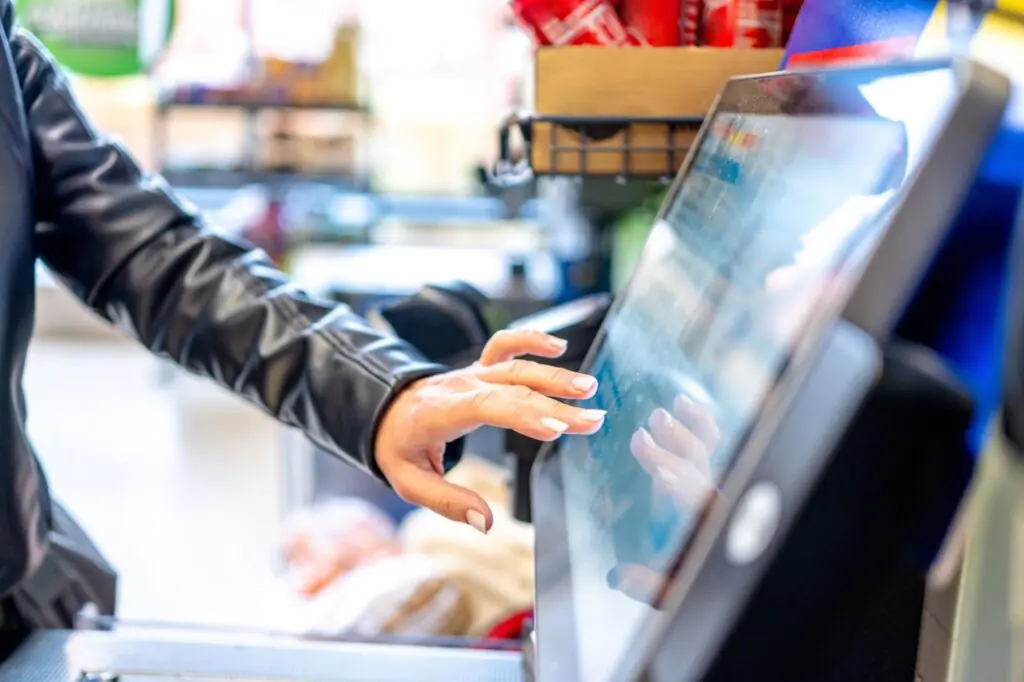
Every unnecessary tap at the register costs time. One extra tap on one transaction is nothing. Multiplied across hundreds of transactions per day, several lanes, and every day of the year, it becomes a significant drag on throughput and a steady source of cashier frustration. Quick keys and customizable screens are the features that attack that waste directly. They let you shape the cashier’s screen around how your store actually sells, instead of forcing every cashier to dig through menus for the things they do all day.
Done well, a customized screen also makes the system easier to learn and harder to misuse. Done poorly, it becomes a cluttered wall of buttons that is slower than the default. Here is how to design screens that genuinely speed up your cashiers.
What Quick Keys Are and Why They Work
A quick key is a button on the cashier screen that triggers an item or action with a single tap. Instead of searching for a product or navigating through menus, the cashier taps one button. Typical quick keys include:
- High-volume items without barcodes, such as loose produce, bakery items, and prepared foods
- Common actions, such as loyalty lookup, price check, and transaction hold
- Frequently used tender types, such as cash, debit, and EBT
- Bags and other small items that appear in many baskets
- Department keys that open a focused list of items for a section of the store
The benefit is straightforward. The research on interface responsiveness from Nielsen Norman Group shows how small delays affect a person’s sense of flow, and the same principle applies to cashiers. The fewer steps between a thought and an action, the faster and more confident the work feels.
Build Your Layout From Real Sales Data
The most common mistake is designing a screen based on opinion. A manager decides what feels important, and the screen ends up full of buttons nobody uses while the real workhorses are buried. A better approach starts with your data.
Pull a report of the items most frequently rung up by hand, meaning items without a scannable barcode. Those are your best quick key candidates, since scanned items do not need a button. Then look at the most common non-scan actions, such as loyalty lookup and price checks. Rank both lists by frequency and give the top items the most prominent positions.
FlexRetail’s reporting and analytics tools can show you which items and actions are used most, and our guide to the five POS reports every grocery manager should review weekly is a good starting point for building a review habit.
Design Principles That Keep Screens Fast
A good screen is deliberately limited. Follow a few core principles:
- Keep each screen focused. A screen with a dozen well-chosen buttons beats one with eighty crammed together. If you need more, organize them into clear department pages.
- Put the most-used keys in the most reachable positions, usually the center and lower area where the cashier’s hand naturally rests.
- Use consistent positions across lanes. A cashier who moves between registers should find the same button in the same place.
- Use color and labels with purpose. Color coding by department helps the eye find the right key quickly, but too many colors create noise.
- Use clear, short labels. Abbreviations that only one person understands slow down everyone else.
- Group related items together, such as all produce on one page and all bakery on another.
- Separate dangerous actions from common ones. Keys that void, override, or discount should not sit next to keys that are tapped constantly.
That last principle ties directly to loss prevention. Our guide to the role of your POS in preventing internal theft explains why risky functions should be restricted and visible.
Tailor Layouts to Lanes and Roles
Not every lane or person needs the same screen. A customized system lets you build layouts that fit the job:
- An express lane layout can emphasize bags, common small-basket items, and fast tenders
- A produce-heavy lane or a service counter can emphasize PLU items and weighted products
- A new cashier layout can be simpler, with fewer buttons and clearer labels, while an experienced cashier layout can offer more advanced functions
- Role-based screens can hide functions a role does not need, which reduces errors and confusion
This overlaps with access control. FlexRetail’s role-based permission system lets you align what each role sees and can do, and our guide to managing a mixed full-time and part-time team with POS role permissions shows how to structure it.
Customization Is a Training Tool
A clean, logical screen shortens training. A new hire who sees a handful of clearly labeled, well-organized keys can begin processing common transactions quickly, without memorizing PLU codes or menu paths. That matters for stores with high turnover, and our post on handling high turnover without constant retraining shows how much a simple interface contributes. It also supports cross-training, since staff moving between roles can rely on consistent layouts. See our guide to cross-training grocery staff using your POS as the foundation for more.
Test, Measure, and Refine
A layout is never finished. After you change a screen, watch what happens:
- Compare average transaction time per lane before and after the change
- Ask cashiers which keys they use most and which they never touch
- Watch a few transactions to see where hands hesitate or reach
- Update layouts seasonally, since holiday items and seasonal produce change what is most common
Involve your cashiers in the process. They know where the friction is, and people support changes they helped design. Our guide to getting your staff to buy into a new POS system covers ways to build that buy-in.
Start Small
You do not need to redesign every screen at once. Pick your busiest lane, identify the ten most-used manual items and actions, build a clean layout around them, and measure the result. Then expand what works. Our guide to creating a faster checkout experience without sacrificing accuracy places screen design within the wider picture of lane speed, and our post on designing a checkout lane that moves faster covers physical layout.
Schedule a FlexRetail demo to see how quick keys and screen layouts can be configured for your store’s transaction mix.