
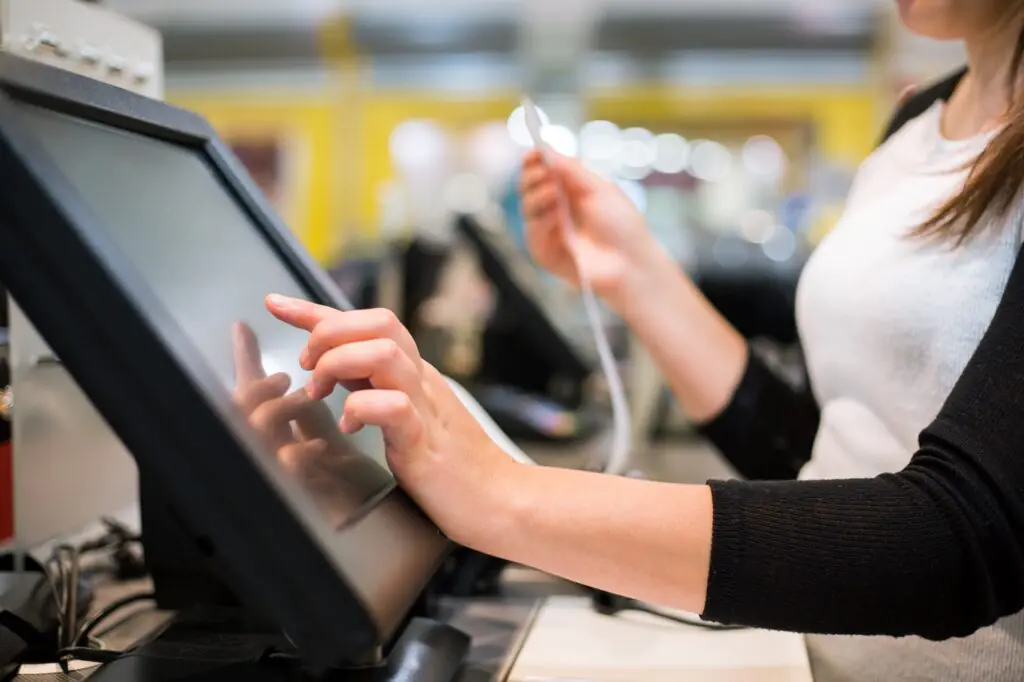
Most of what crosses a grocery checkout lane never touches the terminal’s input device. Packaged items are scanned, and the cashier’s hands stay on the product and the scanner. But the items that do require manual input, such as loose produce, bakery items, loyalty lookups, and the occasional price override, are exactly the ones that slow a lane down when the terminal is a poor fit for the people using it.
That makes the touchscreen versus keyboard question more important than it first appears. The input style you choose shapes how quickly new cashiers learn the system, how fast experienced cashiers move through produce-heavy baskets, and how well the equipment holds up to daily wear. Here is how to think through the decision for your own lanes.
What Each Style Does Well
A touchscreen terminal puts the entire interface on the display. Buttons for common items, actions, and payment types appear on screen and can be rearranged as your store changes. A traditional keyboard terminal pairs a display with a physical keyboard or keypad, so cashiers type codes and press dedicated keys.
Touchscreens tend to offer these advantages:
- A visual layout that new cashiers can learn quickly, since buttons are labeled and grouped by department
- Flexible screens that you can change without buying new hardware, which makes seasonal and promotional updates easy
- Quick keys that surface your most common manual items in one tap, covered in our guide to quick keys and customizable screens
- A cleaner, more modern look at the register that customers notice
Keyboards and physical keypads tend to offer these advantages:
- Tactile feedback, so experienced cashiers can enter codes without looking at the keys
- Very fast numeric entry, which matters when a cashier knows the four-digit PLU codes for produce by heart
- Predictable performance with wet hands or gloves, since physical keys do not depend on capacitive touch
- Familiarity for long-tenured staff who built their muscle memory on keyboard systems
Where Touchscreens Can Struggle in Grocery
Touchscreens are not automatically the better choice. In a grocery environment, a few weaknesses deserve attention:
- Smudges, moisture, and residue can reduce screen responsiveness, especially at deli, meat, and seafood counters
- Small or crowded buttons cause mis-taps, and research from Nielsen Norman Group on touch target size shows how quickly accuracy drops when targets are too small
- Gloved or wet hands can interfere with some touch technologies
- A cracked or failed screen can take the entire terminal out of service, which makes durability and support more important
These concerns are why durability and placement matter so much in departments with wet or greasy conditions. Our guide to rugged POS hardware at meat counters, cold rooms, and busy aisles explains what to look for.
Where Keyboards Can Struggle
Physical keyboards have their own weaknesses:
- A steeper learning curve for new employees, who must memorize codes and key positions
- A fixed layout that is harder to update when your product mix changes
- More counter space and more places for dirt and debris to collect between keys
- A less intuitive experience for part-time and seasonal staff, which compounds the problem in stores with high turnover
If your team turns over frequently, that learning curve is a real cost. Our post on handling high turnover without constant retraining shows how much an intuitive interface contributes to getting new cashiers productive quickly.
The Hybrid Answer Many Grocers Choose
For many stores, the best answer is not purely one or the other. A touchscreen paired with a numeric keypad, or a touchscreen with a programmable key set for your highest-volume actions, combines the flexibility of a visual layout with the speed of tactile entry. Cashiers can tap a quick key for a popular bakery item and type a PLU on the keypad for everything else.
Hybrid configurations are particularly useful in lanes with heavy produce traffic, where cashiers alternate between scanning and manual entry all day.
Match the Terminal to the Lane
Different lanes have different needs, so it can make sense to configure them differently:
- Express lanes with small baskets and mostly scanned items are well served by a simple touchscreen with a clean layout
- Full-service lanes with heavy produce and bulk items benefit from a touchscreen plus keypad, so cashiers can move fast on manual entry
- Deli, meat, and seafood counters call for sealed, easy-to-clean equipment that tolerates moisture, whichever input style you choose
- Self-checkout lanes are touch by design, which our overview of self-checkout for independent grocers covers in more detail
- Customer service desks often need both, since staff handle lookups, returns, and account questions
Think About Ergonomics and Accessibility
Input style is also a comfort and safety question. Cashiers spend hours repeating the same motions, and the angle of a screen, the reach to a keypad, and the height of the terminal all affect strain over a shift. OSHA’s ergonomics guidance is a useful starting point for setting up workstations that reduce repetitive stress.
Accessibility matters for customers too. Checkout areas need to accommodate shoppers who use wheelchairs or have limited reach, and the ADA Standards for Accessible Design include requirements that apply to checkout aisles and payment equipment. The customer-facing display and payment terminal should be positioned so every shopper can see and use them comfortably. Our guide to the customer-facing display and trust at the register covers the customer side of the lane.
Run a Simple Trial Before You Commit
You do not have to guess. A short trial with your own cashiers and your own transactions produces better information than any spec sheet:
- Time twenty or more produce-heavy transactions on each configuration and compare average transaction times
- Count errors, such as wrong PLU selections and mis-taps, on each setup
- Ask both new and experienced cashiers which they prefer and why
- Check readability of the screen under your store’s actual lighting
- Test with wet or gloved hands in any department where that is a daily reality
- Note how easily each unit cleans during a rush
Involving your cashiers also builds buy-in, which our guide to getting your staff to buy into a new POS system explains in more depth.
The Bottom Line
There is no universal winner. Touchscreens win on flexibility and ease of learning, while keyboards win on tactile speed for experienced users. Most independent grocers end up with a touchscreen foundation, supported by a keypad where manual entry is heavy and rugged, sealed equipment where conditions are tough.
FlexRetail’s POS hardware is built for grocery conditions, and our overview of POS hardware built for the way retailers actually work shows how the components fit together. Schedule a demo to try the terminal options on your own transaction types and see which configuration fits each lane in your store.